









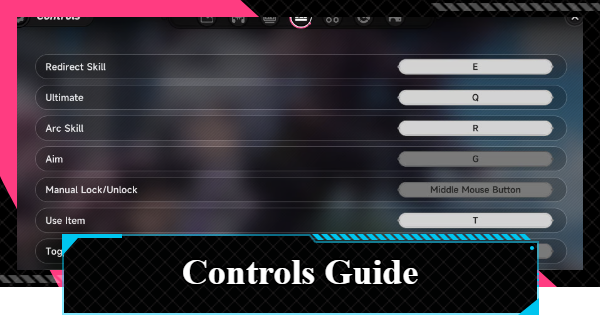
Check out this Controls Guide for Neverness to Everness (NTE). See how to change controls, list of controls, and more!
| Related Articles | |
| Combat Guide | Controls Guide |
List of Controls
Movement
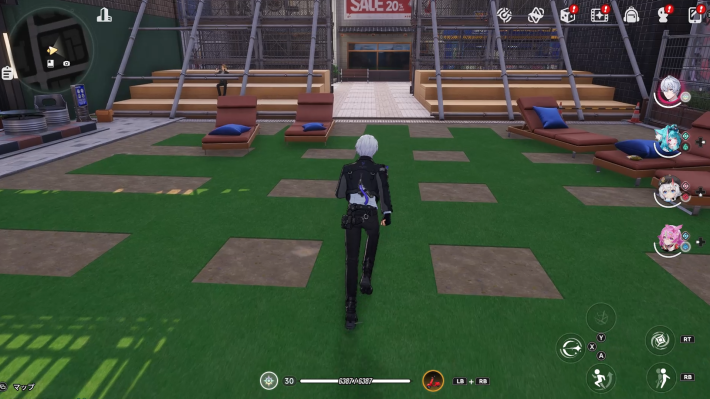

| Controller | Keyboard |
| L Stick | W/A/S/D (Forward/Left/Back/Right) |
You can move in any direction by tilting the L stick.
Jump/Glide
| Controller | Keyboard |
| B / ✕ | Spacebar |
You can perform a double jump by jumping in mid-air. Pressing the jump button again will let you glide.
Dodge/Dash
| Controller | Keyboard |
| RB / R1 | Right-click / Left Shift |
You can dash by pressing the Dodge button while moving.
Basic Attack
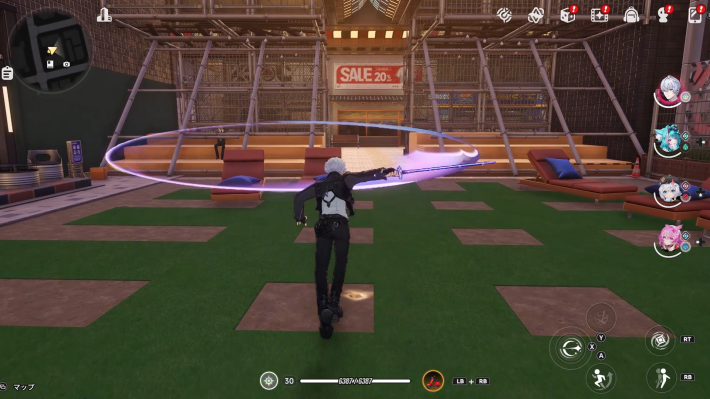
| Controller | Keyboard |
| X / □ | Left-click |
Pressing the Basic Attack button repeatedly will result in a combo attack. Some characters perform a different attack when the button is held down.
Redirect Skill
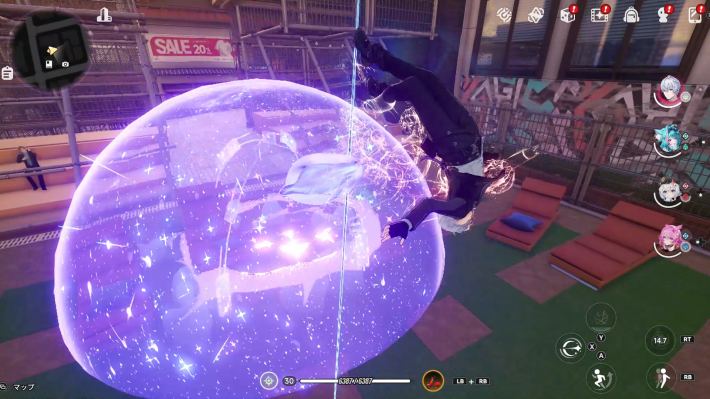
| Controller | Keyboard |
| RT / R2 | E |
This skill enters a cooldown period after use and can be used again once the cooldown is over. Some characters perform a different attack when the button is held down.
Ultimate
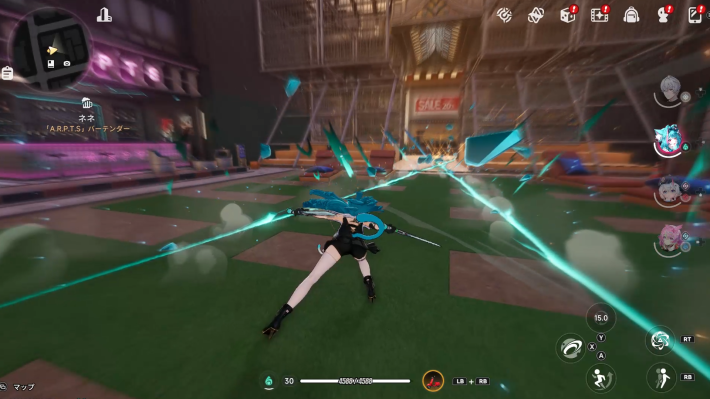
| Controller | Keyboard |
| Y / △ | Q |
This can be used when your Ultimate Energy is at its maximum. Ultimate Energy is accumulated by attacking enemies with Basic Attacks or Redirect Skills.
Switch Character
| Controller | Keyboard |
| D-pad | 1/2/3/4 |
You can switch to the corresponding character by pressing the button displayed to the right of the character icon.
Interact
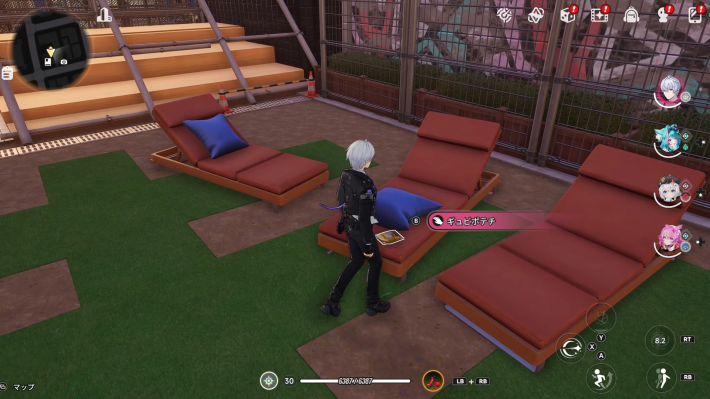
| Controller | Keyboard |
| B / 〇 | F |
Use this button to obtain items, talk to NPCs, and get on vehicles.
Reset Camera
| Controller | Keyboard |
| R Stick Button | Press Mouse Wheel |
You can instantly turn the camera to the direction the character is facing.
Quick Wheel
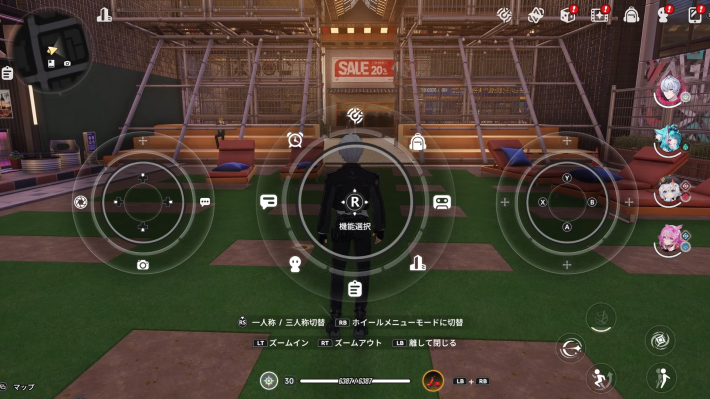
| Controller | Keyboard |
| Hold LB / L1 | Hold Tab Key |
While the Quick Wheel is open, you can use the R stick (or mouse) to select the various menus registered to the wheel.
Operations available in the Quick Wheel
| Action | Controller | Keyboard |
| Zoom In | LT / L2 | Mouse Wheel |
| Zoom Out | RT / R2 | Mouse Wheel |
| Switch View | R Stick Button | None |
| Switch Wheel Menu | RB / R1 | None |
Switch View
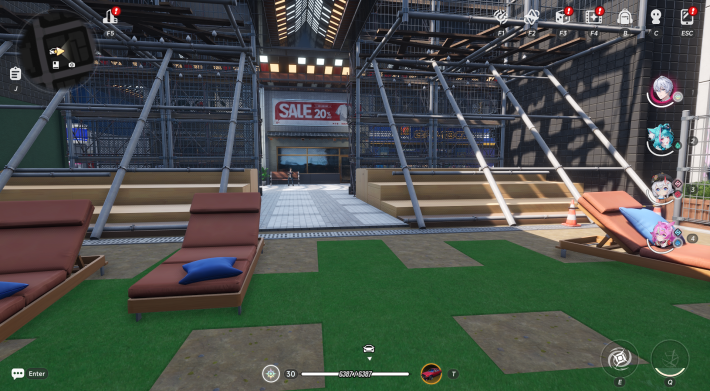
| Controller | Keyboard |
| Hold LB / L1 +R Stick Button | Z |
You can switch between first-person and third-person perspectives.
Open Item Menu
| Controller | Keyboard |
| Hold LB / L1 + RB / R1 | Hold T Key |
You can use items registered in your bag. With a controller, select an item with the R stick to use it. With a keyboard, select an item with the mouse or number keys, then press T to use it.
Controls While Riding a Vehicle
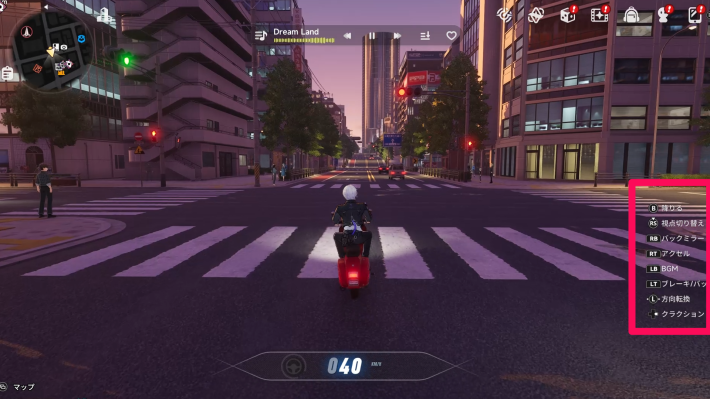
When riding a vehicle, the UI for each control is displayed on the right side of the screen, so use the corresponding buttons to operate it.
List of Controls While Riding a Vehicle
| Action | Controller | Keyboard |
| Accelerate | RT / R2 | W |
| Brake | LT / L2 | S |
| Steer | L Stick | A/D |
| Switch View | R Stick Button | Z |
| Handbrake | Y / △ | Left Shift |
| BGM Controls | Hold RB / R1 +D-pad | Number Keys |
| Honk | D-pad Right | G |
| Switch Mode | X | H |
| Rear-view Mirror | RB / R1 | Right-click |
| Get Off | B | F |
Summon Mouse Cursor
| Controller | Keyboard |
| None | Hold Alt Key |
You can summon the mouse cursor to directly select UI elements displayed on the screen. This cannot be used with a controller.
How to Change Controls
Procedure for Changing Controls
| 1. |  Open Settings from the Menu. |
| 2. |  Select the keyboard icon. |
| 3. |  Select the action you want to rebind, then press the new key or button you wish to assign to it |
You can change the controls for both the controller and the keyboard. However, some controls, such as movement and the wheel menu, cannot be changed.
NTE Related Articles
Return to HomeRecommended Articles
Recommended Guide Articles
 Early Game Guide
 Mid-Game Guide
 Daily Things to Do
 Team Building Tips
 Hunter Level
 Appraisal Level
 Anomaly Commission List
 Beyond the Rails
 Get Chiz for Free
 Get Free S-Rank Arcs
 Mall Guide
 Oracle Stone
 Interactive Map
 Best In-Game Purchases
 How to Min-Max Consoles
 Hunter Exchange
 Latest Updates
Database
  All Items List All Items List |  All Furniture List All Furniture List |  Fish List Fish List |
 Vehicles List Vehicles List |  Hidden Achievements Hidden Achievements |  Voice Actor Cast Voice Actor Cast |
 Outfits and Skins Outfits and Skins |  Arcs Weapon List Arcs Weapon List |  All Cartridges List All Cartridges List |
 Gacha Machine Locations Gacha Machine Locations |  Achievements List Achievements List |  Common Enemy List Common Enemy List |