









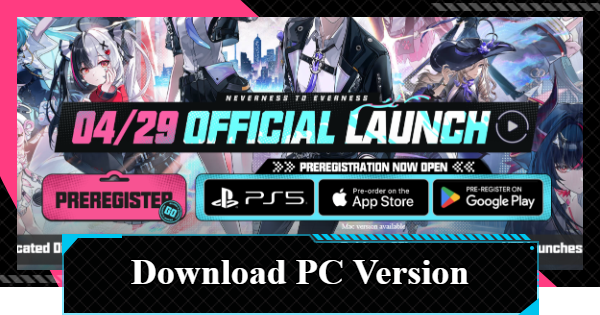
This is how to download the PC version (Steam version) of NTE (Neverness to Everness). It covers the NTE PC download method, minimum/recommended specs, and how to free up storage.
| Related Guides | |
| Supported Platforms | Recommended Specs |
| PC Version | Mobile Version |
| How to Download on PS5 | Cross-Save |
| Nintendo Switch | |
Table of Contents
New Platforms Announced
To Be Added To New Platforms


It has been announced that Steam, Epic Games Store, and Samsung Galaxy Store will be added as distribution platforms for NTE. Pre-registration is expected to begin soon.
Download from PC
Download from Various Platforms

The PC version of NTE can be downloaded from the official website or from various platforms.
| Store Links | |
|---|---|
| PC | GooglePlay |
| Steam | Epic Games |
How to Download from the Official Website
- Select PC Download on the official website
- Open the downloaded launcher
- Install and launch the game

First, go to the NTE official website and select PC Download to download the launcher.

Once you open the downloaded launcher, check the terms of use and select Quick Install. If you select Custom Install, you can change the installation location.

Once the game installation is complete, you can launch the game from the launcher.
How to Install Google Play Games Version
- Download Google Play Games
- Search for NTE in the Play Store
*Only available during the pre-registration period - Select Pre-Register
- Launch from Your library

First, download and install Google Play Games from the official Google Play Games website.

Use the official Google Play Store site to search for NTE.

Since the game is not yet available for download, select "Pre-register". After pre-registering, you may be prompted to download Google Play Games. If you haven't installed it yet, we recommend doing so now.
 Tips! Tips! | Once the game is released, you can download it from this page. |
|---|

Once the download is complete, you can launch the game from the "Library" tab.
How to Install the Steam Version
- Download Steam
- Launch Steam and search
- Select Add to your Wishlist
- Launch from your Library

First, download and install Steam from the official Steam website.

Once the installation is complete, open Steam. Search for "nte" in the store and go to the page.

Since it's not available for download yet, add it to your wishlist. You will receive notifications for releases, sales, and more.
| Note! | Once it's released, you will be able to download it from this page. |
|---|

Once the download is complete, you can launch the game from the Library tab.
How to Install the Epic Games Version
- Download Epic Games
- Launch Epic Games and search
- Select Add to Wishlist

First, download and install Epic Games from the official Epic Games website.

Once the installation is complete, open Epic Games. Search for "nte" in the store and go to the page.

Since it's not available for download yet, add it to your wishlist.
| Note! | Once it's released, you will be able to download it from this page. |
|---|
Recommended PC Specs
PC System Requirements
| Item | Minimum | Recommended |
|---|---|---|
| OS | Windows 10 (64-bit) or later | Windows 11 (64-bit) |
| CPU | Intel Core i7-10700 | Intel Core i7-12700 or better |
| Memory | 16 GB or more | 32 GB or more |
| GPU | NVIDIA GeForce GTX 1660 or equivalent | NVIDIA GeForce RTX 3060 or better |
How to Free Up PC storage
- Open Settings → "Apps" → "Installed Apps"
- Uninstall Apps

Open "Settings" → "Apps" → "Installed Apps" from the Start menu.

Select the app you want to remove and uninstall it. We recommend choosing apps that take up a lot of space and that you don't use often.
Deleting Images and Videos Also Helps

Images and videos can also take up a significant amount of storage space. Their location varies depending on the recording method and software settings, but they are often saved in the "Videos" folder. Move any unnecessary files to the Recycle Bin and then empty it to free up space.
NTE Related Articles
Return to HomeRecommended Articles
Recommended Guide Articles
 Early Game Guide
 Mid-Game Guide
 Daily Things to Do
 Team Building Tips
 Hunter Level
 Appraisal Level
 Anomaly Commission List
 Beyond the Rails
 Get Chiz for Free
 Get Free S-Rank Arcs
 Mall Guide
 Oracle Stone
 Interactive Map
 Best In-Game Purchases
 How to Min-Max Consoles
 Hunter Exchange
 Latest Updates
Database
 All Items List All Items List |  All Furniture List All Furniture List |  Fish List Fish List |
 Vehicles List Vehicles List |  Hidden Achievements Hidden Achievements |  Voice Actor Cast Voice Actor Cast |
 Outfits and Skins Outfits and Skins |  Arcs Weapon List Arcs Weapon List |  All Cartridges List All Cartridges List |
 Gacha Machine Locations Gacha Machine Locations |  Achievements List Achievements List |  Common Enemy List Common Enemy List |