









Want to take the perfect screenshot? Discover how to use Photo Mode settings, pose up to 4 characters at once, and share your best shots on the Bagel app for rewards!
Table of Contents
Photo Mode Settings & Benefits
How to Access Photo Settings


While in Photo Mode, click the button in the top-left corner of the screen to open the settings menu. Here, you can adjust poses, expressions, camera filters, and contrast. You can even change the time of day and weather without leaving the camera screen, perfect for setting up a quick nightscape shot!
Share Photos on Bagel to Earn Rewards

You can share your best shots using the in-game Bagel app. The more likes and comments your posts receive, the more Praise Jam you will earn! Since you are limited to posting up to 5 photos per day, make sure to pick your absolute favorites to maximize your daily rewards.
How to Use Bagel and Earn Praise JamPhoto Mode Features Explained
Camera Settings

The Camera Settings menu lets you adjust focus, rotate the camera angle, and hide or show specific elements like enemies, NPCs, and the character's camera gaze.
Camera Settings Overview
| Setting | Description |
| Focal Length | Adjusts how close the camera zooms in on the character. |
| Depth of Field Switch | Toggles background blur. Tip: Increase the focal length and narrow the aperture to blur only the background. |
| Camera Rotation | Tilts the camera angle left or right for dynamic shots. |
| Character Rotation | Rotates the character model while keeping the background completely static. |
| Other Settings |
|
Graphics Settings

Graphics Settings allow you to manually fine-tune brightness, contrast, and color tones to perfect your image. Tip: For a creative shot, lower the color temperature and increase the tint to turn your character into a dark silhouette!
Graphics Settings Overview
| Setting | Description |
| Brightness | Adjusts the overall lightness or darkness of the screen. |
| Saturation | Changes color intensity, shifting from grayscale to highly vibrant tones. |
| Contrast | Enhances the visual difference between the light and dark areas. |
| Color Temperature | Shifts the overall tone between cool (bluish) and warm (reddish). |
| Tint | Adjusts the color balance between green and magenta/red hues. |
| Soft Light Intensity | Controls the brightness of the generated light source. |
| Soft Light Range | Determines how far the soft light spreads across the scene. |
| Vignette | Adds a dark shadow around the edges of the screen to draw the viewer's focus to the center. |
Character Settings (Poses and Expressions)

Customize your character's body language and facial expressions here to bring them to life! Keep in mind that the available poses will vary depending on the specific character you are controlling.
Exclusive Selfie Mode Poses

Certain poses, such as the finger heart, can only be used in Selfie Mode (accessible from the top-right corner of the photo screen). Only your currently active character can perform selfie poses, so be sure to switch to your desired character before opening the camera app.
Character Group Photo

The Character Group Photo feature allows you to place up to 4 characters in a single scene, including your active protagonist. Note that you can only select characters that you have already unlocked on your account.
Customize Each Character Individually

Once your squad is placed, you can adjust the specific pose, position, and facial expression for every individual character in the scene to curate the perfect group shot.
Environment Settings

Change the time of day and weather conditions on the fly. You don't need to exit the camera mode to change the environment, making it incredibly easy to capture the exact mood you want without waiting for in-game time to pass.
Lighting Settings

Add custom lighting directly to your shot. This setting allows you to easily adjust the direction, color, and intensity of a spotlight shining directly on your characters to make them pop.
Filter Settings
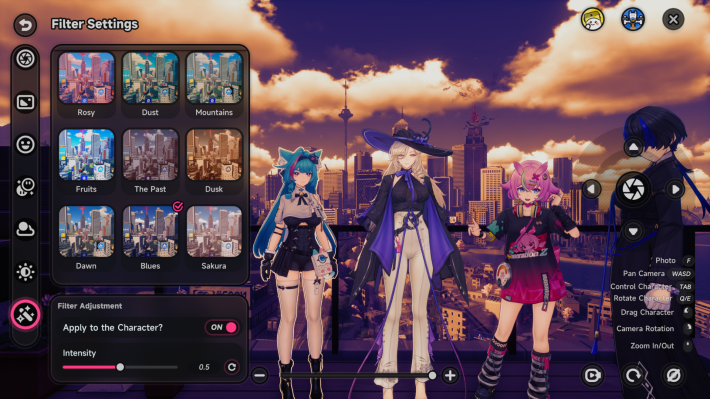
Apply preset filters to instantly change the vibe of your photo. If you aren't comfortable tweaking manual graphics sliders, filters are a quick and easy way to create a stunning atmosphere. You can even exclude the character from the filter so it only affects the background environment!
Frame Settings
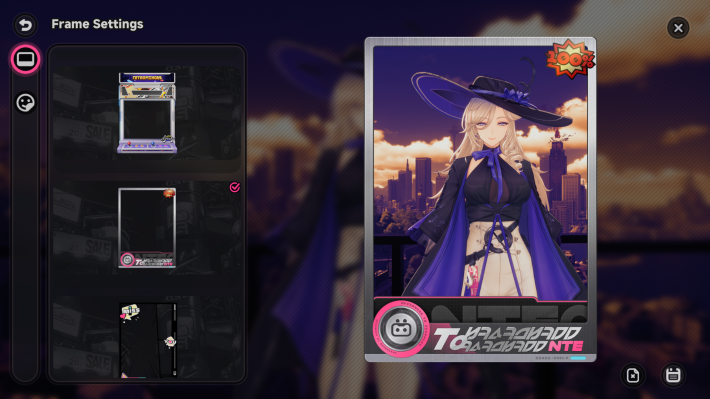
Customize your photo frames with a variety of stylish borders to give your shots a polished and stylish look before sharing them on the Bagel app!
Stickers Settings
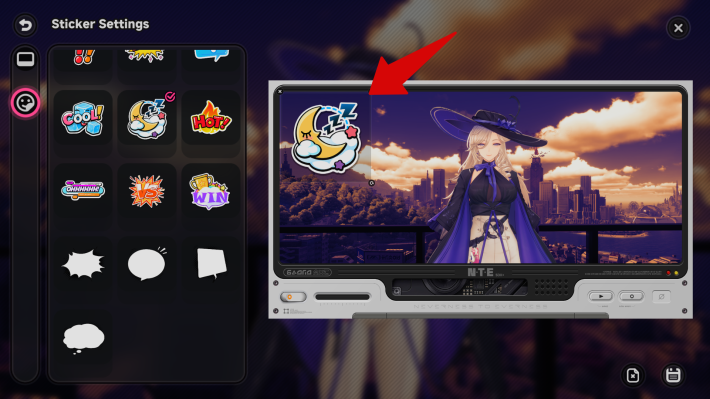
Personalize your shots by adding fun decals from a selection of 43 different stickers. You can freely place, resize, and rotate these stickers to add a touch of personality and flair to your group photos or selfies.
NTE Related Articles
Return to HomeRecommended Articles
Recommended Guide Articles
 Early Game Guide
 Mid-Game Guide
 Daily Things to Do
 Team Building Tips
 Hunter Level
 Appraisal Level
 Anomaly Commission List
 Beyond the Rails
 Get Chiz for Free
 Get Free S-Rank Arcs
 Mall Guide
 Oracle Stone
 Interactive Map
 Best In-Game Purchases
 How to Min-Max Consoles
 Hunter Exchange
 Latest Updates
Database
 All Items List All Items List |  All Furniture List All Furniture List |  Fish List Fish List |
 Vehicles List Vehicles List |  Hidden Achievements Hidden Achievements |  Voice Actor Cast Voice Actor Cast |
 Outfits and Skins Outfits and Skins |  Arcs Weapon List Arcs Weapon List |  All Cartridges List All Cartridges List |
 Gacha Machine Locations Gacha Machine Locations |  Achievements List Achievements List |  Common Enemy List Common Enemy List |