









Best settings guide for NTE (Neverness to Everness). Learn how to fix lag, stuttering, and crashes, the recommended graphics quality settings, and how to customize the Radial Menu.
Table of Contents
How to Fix Lag, Stuttering & Crashes
If NTE is running poorly on your device, work through this troubleshooting checklist:
- Check the Recommended Specs
- Lower Your Game Settings
- Try Installing on Another Device
- Restart Your Device
- Close Unused Apps
- Prevent Device Overheating
Check Recommended Specs
To play NTE (Neverness to Everness) comfortably, your device needs to meet or exceed the minimum system requirements. If the game suddenly crashes, it may be due to insufficient hardware performance. If your device is older or running low on storage, double-check its specifications.
Storage Requirements & Recommended SpecsLower Your Game Settings


If the game is stuttering, lowering the frame rate and graphics quality is the fastest way to reduce the load on your PC or smartphone. You can adjust detailed graphical settings from Menu > Options (Gear Icon).
| Tip! | The Menu button is in the top right corner of the screen. Press the Esc key on PC, the OPTIONS button on a PlayStation controller, or the Menu button on an Xbox controller to open it. |
|---|
Try Installing on Another Device
The game may be crashing due to a sync error between your account and the servers. Installing and playing NTE on a different device with the same account can sometimes correct the sync, allowing you to play normally on your original device again.
Restart Your Device
If the game feels unusually sluggish, a simple restart often helps. Restarting clears temporary memory and can fix minor launch errors.
Close Unused Apps
Background apps may be consuming RAM and processing power. Close any unused software on your PC, or force-quit background apps if you are playing on a smartphone.
Prevent Device Overheating
Overheating on your PC or smartphone can also cause performance to drop. Take steps to prevent overheating before launching NTE so you can enjoy smooth gameplay.
Recommended Graphics Settings
Best Image Quality Settings
| Setting | Low Quality | High Quality |
| Graphics Quality | Performance | Extreme |
| Resolution | 1280×720 | 1920×1080 |
| NVIDIA DLSS | Off | On |
| DLSS Super Resolution | Performance | DLAA |
| Anti-Aliasing (AA) | Off | User Preference |
| Rendering Accuracy | 1 | User Preference |
| Frame Rate | 30 | 120 |
| Texture Mapping | Very Low | Ultra |
| Material | Very Low | Ultra |
| Foliage | Very Low | Ultra |
| View Distance | Very Low | Ultra |
| Post-Processing | Very Low | Ultra |
| VSync | User Preference | User Preference |
| Sharpening | User Preference | User Preference |
| Saturation | User Preference | User Preference |
| Brightness | User Preference | User Preference |
| Motion Blur | Off | Very High |
Graphics Quality and Frame Rate have the heaviest impact on overall game performance. Adjust these settings to match your device's specs. Anti-Aliasing, DLSS Super Resolution, Rendering Accuracy, and Post-Processing handle visual flair such as water reflections, lighting, and special effects.
Match Frame Rate to Monitor
It is generally best to cap your frame rate to match your monitor's maximum refresh rate (Hz). Try playing at both 30 FPS and 60 FPS, and if you don't notice a difference, leave it set to 30.
Play in Borderless Window Mode (PC)
NTE (Neverness to Everness) supports a Borderless Window display mode that stretches the game across your entire screen. This makes it much more comfortable to move your cursor between displays in dual-monitor setups.
Recommended Game Settings
Turn Off the Compact Status Bar Mode

Disable the Compact Status Bar Mode in the Controls Settings.
Display Buff Icons and Status Effects
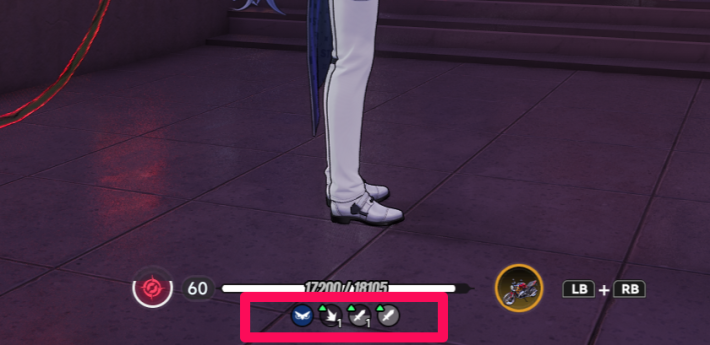
Once the Compact Status Bar Mode is turned off, buff icons and other status effects will be displayed below your character's HP.
How to Customize Your Radial Menu
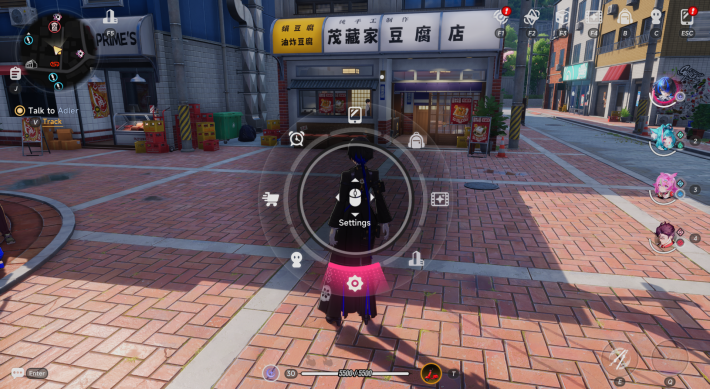
The Radial Menu is a quick-access menu you can freely customize to fit your playstyle. Note that core system functions like the Camera, Exit Game button, Customer Support, and Official Community links cannot be added to the Radial Menu and must be accessed from the main menu screen.
How to Open the Radial Menu
| Smartphone | TBA |
| PlayStation Controller | Hold the L1 Button |
| Xbox Controller | Hold the LB Button |
| Keyboard | Hold the TAB Key |
Default Radial Menu Layout
| Wheel ↑ (Up) | Menu |
| Wheel ↗ (Top-Right) | Inventory |
| Wheel → (Right) | Events |
| Wheel ➘ (Bottom-Right) | City Tycoon |
| Wheel ↓ (Down) | Quests |
| Wheel ↙ (Bottom-Left) | Characters |
| Wheel ← (Left) | Mall |
| Wheel ↖ (Top-Left) | Time System |
NTE Related Articles
Return to HomeRecommended Articles
Recommended Guide Articles
 Early Game Guide
 Mid-Game Guide
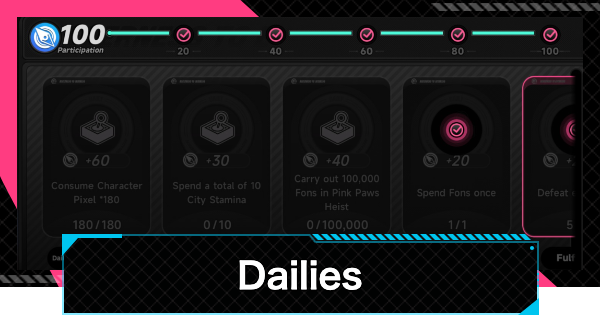 Daily Things to Do
 Team Building Tips
 Hunter Level
 Appraisal Level
 Anomaly Commission List
 Beyond the Rails
 Get Chiz for Free
 Get Free S-Rank Arcs
 Mall Guide
 Oracle Stone
 Interactive Map
 Best In-Game Purchases
 How to Min-Max Consoles
 Hunter Exchange
 Latest Updates
Database
 All Items List All Items List |  All Furniture List All Furniture List |  Fish List Fish List |
 Vehicles List Vehicles List |  Hidden Achievements Hidden Achievements |  Voice Actor Cast Voice Actor Cast |
 Outfits and Skins Outfits and Skins |  Arcs Weapon List Arcs Weapon List |  All Cartridges List All Cartridges List |
 Gacha Machine Locations Gacha Machine Locations |  Achievements List Achievements List |  Common Enemy List Common Enemy List |