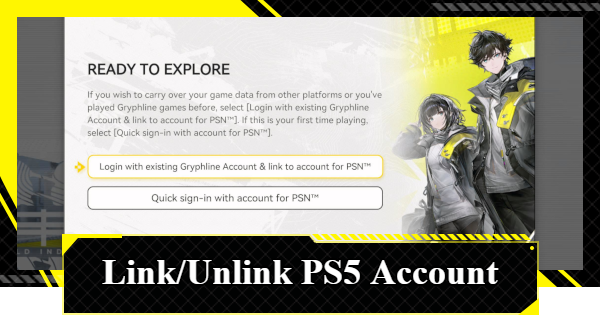
PS5 account linking guide in Arknights: Endfield. Learn important PS5 account linking notes, how to link your PS5 account, and the steps to unlink your PS5 account in AKEF.
Table of Contents
PS5 Account Linking Notes
Link on First Launch Only


You can link your Arknights: Endfield PS5 save data to an account on another platform (such as iOS or Android) through the account binding system. However, the Account Linking screen generally appears only during the initial game launch.
 Note! Note! | Skipping this step may leave your save data unbound and cause cross-save issues. Complete the account binding process carefully to prevent data loss or transfer problems. |
|---|
Skipping Creates a New Account
If you skip account linking during the initial launch, the game will automatically generate a new account. This poses a risk if you already have existing progress or purchases tied to another account, as you may lose the ability to sync that data to your PS5.
One-Time Unlink Failsafe
The PS5 version includes a safety measure that allows you to unlink your account exactly once per PSN account. If you accidentally created a new account but have an existing one with purchases, use this one-time feature to unlink and retry the connection process.
▼How to Unlink Your PS5 Account
How to Link Your PS5 Account
| 1. | ▼If You Created a New Account on PS5 |
|---|---|
| 2. | ▼If You Created an Account on Another Device |
If You Created a New Account on PS5
- Open "Settings" In-Game
- Select "Account Center" on the Platform & Account Screen
- Register and Verify Your Email Address
- Use this email to log in on other devices
Open "Settings" In-Game
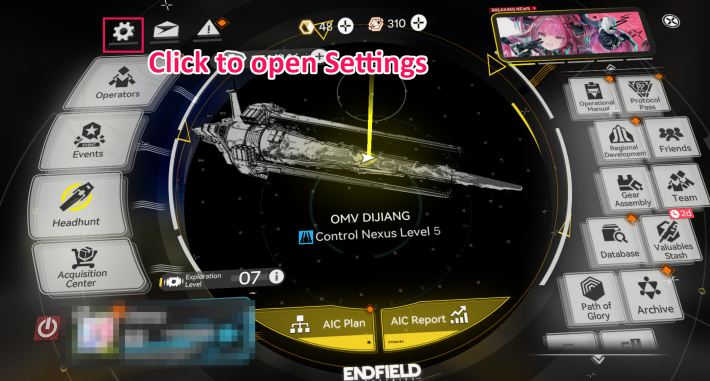
If you started a new game on your PS5 and want to link your account, start by opening the Settings menu from the in-game screen.
Select "Account Center" on the Platform & Account Screen

Navigate to the icons at the top of the menu. Open the Platform & Account (indicated by the person icon, second from the right) and select "Account Center."
Register and Verify Your Email Address

Enter the email address you want to link in the field provided. If your email isn't registered with a Gryphline account yet, you'll need to create one on the official website first.
Official Login Page (External)If You Created an Account on Another Device
Register an Email Address for Your Existing Account

If you’re already using an account on a smartphone or PC, confirm that it has a linked email address. You cannot link your PS5 account without a registered email. If none is registered, log in to the official website and complete the email binding first.
Official Login Page (External)Use the Link Button on First Launch

Once your existing account has a registered email, launch the game on your PS5. Select the Account Link button that appears upon first launch and enter the email address you just registered.
Complete Verification
After entering your email, a verification code will be sent to your inbox. Enter this code on your PS5 screen to finalize the account linking process.
How to Unlink Your PS5 Account
Open "Settings" In-Game
To unlink your PS5 account, open the in-game settings menu.
Select "Account Center" on the Platform & Account Screen
At the top of the screen, select the Platform & Account icon (second from the right), then click "Account Center".
Click "Unlink" PSN Account

Click "Unlink." Keep in mind that you can only unlink once per PSN account.
Return to Login Screen and Link Your Account
You'll be taken back to the login screen, where you can link your account just like you did on first launch.
Related Arknights: Endfield Articles
Back to Top PageTier List
 Characters Tier List
 Reroll Tier List
 Best Weapons Tier List
Gacha Information
 Which Banner Should You Pull?
 Gacha Pity System & Rates
 Gacha Currency
 Basic Headhunting Permit
Recommended Articles
 Early Game Guide
 Redeem Codes List
 How to Add Friends
 Points of No Return
 Authority Level Guide
 Daily Tasks To Do
 Starter Banner Best Weapon
 How to Farm T-Creds
 How to Get Aketine
 How to Get 2 Stock Redistributors
 Depot Nodes Location
 How to Get Origeometry
 Monthly Pass Guide
 Trust & Operator Gift Guide
Events
 Umbral Monument Event Guide Umbral Monument Event Guide |  Survive the Gas Survive the Gas |  Unorthodox Tactics Unorthodox Tactics |
 Ballista and Axe Ballista and Axe |  Bolts and Shadows Bolts and Shadows |  Rampaging Shields Rampaging Shields |
 Rock Solid Rock Solid |  Supply: Exploration Day Supply: Exploration Day |
Things to Know Before Release
 Release Date Release Date |  How to Pre-Download How to Pre-Download |  PS5 Pre-Order Bundle PS5 Pre-Order Bundle |
 How to Link Account How to Link Account |  Is Cross-Play Available? Is Cross-Play Available? |  How to Reroll How to Reroll |
 Operator Class Guide Operator Class Guide |
 Combat System Guide
 How to Win Battles
 Dodge and Perfect Dodge
 Elemental Weakness Chart
 Arts Reactions / Physical Status
 Team Composition Tips
 Best Team Comps
 Potential
 Talents and Base Skills
 How to Craft Gear
 Best Food List
 Artificing and Stats Priority
 All Fast Travel Points
 Protocol Datalogger
 Aurylene
 Interactive Map
 Ferrium Ore Map Location