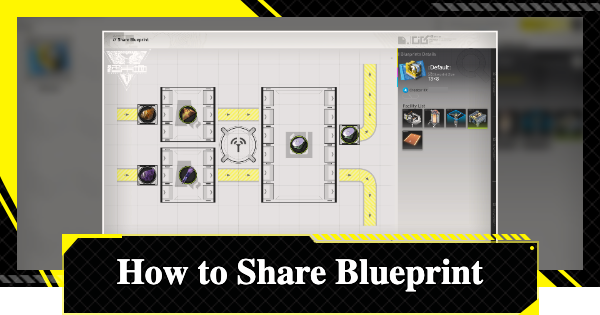
How to Share Blueprints guide for Arknights: Endfield. Guide inlcudes how to share blueprints, share blueprint codes, how to create, share board, and how to unlock blueprints!
Table of Contents
How to Share Blueprints
Create a Blueprint
Create the production line you want to register as a Blueprint, and then register the Blueprint. Blueprint creation requires an approval process, so it's recommended to prepare it in advance if you're making it for a friend.
Select Share Blueprint
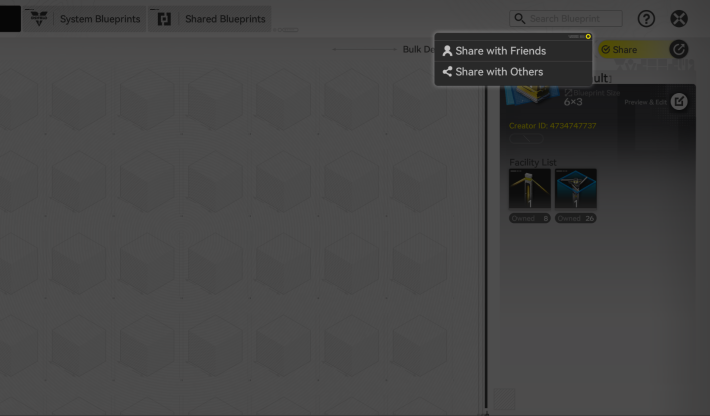

Use the share button in the upper-right corner to choose between sending it to a friend or sharing it with other players.
Choose Which Friend to Share With
If you choose to share it with a friend, your friend list will appear. Scroll through and select the friend/s you're looking for to share your creation.
Share Your Blueprint Using A Code
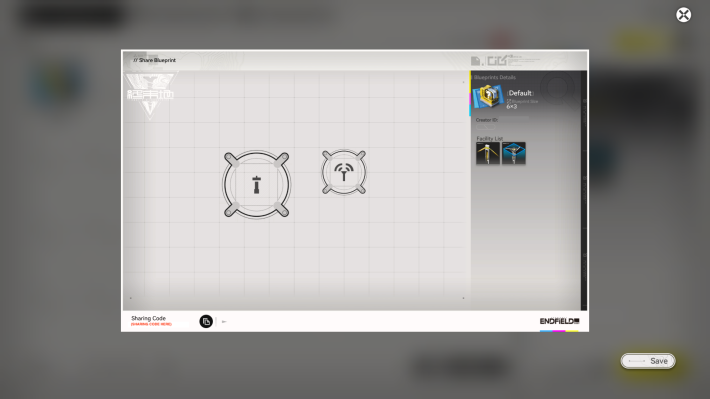
Tapping the Share button in the top-right and choosing Share with Others will create a preview image of your layout. You can save this to post your design on any social media platform. You will need to copy the share code at the bottom for other people to use it.
Share It On Social Media, Forums, etc.
Share your screenshot and code on any social media platform. As soon as someone else registers the code, they can instantly use the Blueprint you’ve built.
How to Enter Share Codes and Import Blueprints
Unlock Blueprints in the Story Mission "Paving the Way"
The person receiving the shared Blueprint also needs to have their Blueprints unlocked. If you can't access the Blueprint screen yet, you need to progress through the story to the "Paving the Way" quest.
Select Import Blueprint
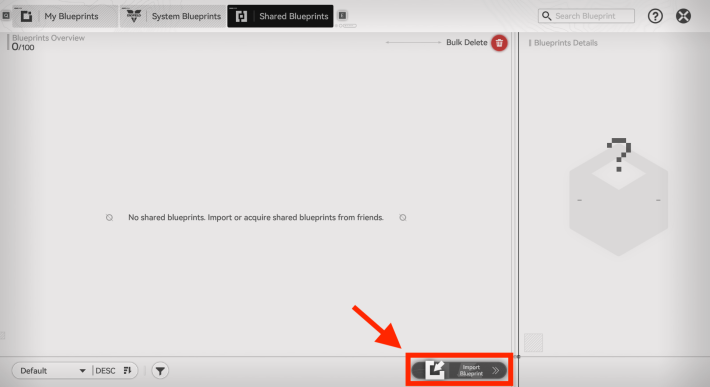
To use a Blueprint shared externally, select "Import" under "Shared Blueprints". You will be prompted to enter a Blueprint share code, so enter the code for the Blueprint you want to use. A preview of the Blueprint will appear. If everything is correct, select "Save".
| Note! | Once you've entered a code for a Blueprint, you can recall it from your Shared Blueprints at any time! |
|---|
Select Place & Apply the Blueprint
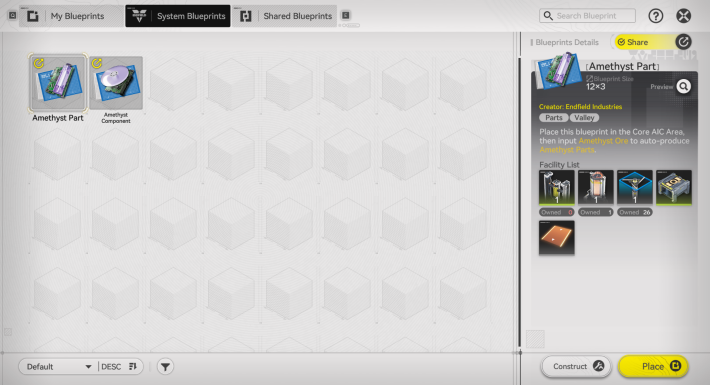
From the Blueprint screen, select the Blueprint you want to use and choose "Apply Blueprint". Owned Blueprints are the ones you've created, System Blueprints are those distributed in-game, and Shared Blueprints are those shared by friends or obtained via import.
Cannot Be Used If Conditions Are Not Met
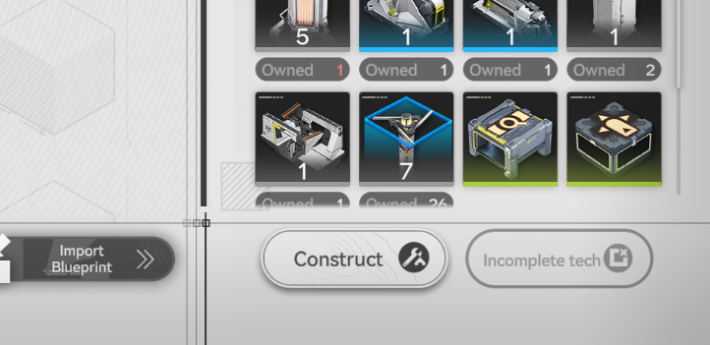
To use a Blueprint, you must meet certain conditions, such as having the necessary research and facilities unlocked to construct it. If the conditions are not met, you cannot place the facilities using the Blueprint.
Choose Where to Place It
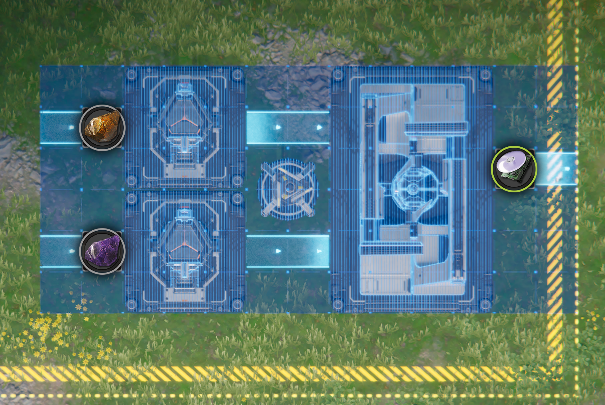
When you use a Blueprint, all the saved buildings and transport belts appear together as a single unit, allowing you to place the entire layout at once. After positioning it, simply connect the layout to a power source or other necessary lines to get your new production chain up and running.

 Blueprint Code List
 How to Create Blueprints
 Basic AIC Controls
 Clogged Transport Belts
 Fixing AIC Facility Issues
 Repair Broken Facilities
 How to Craft Bombs
 Best Zipline Locations and Routes
 Sub-PAC Locations and Uses
 Best Farming Blueprints
 PAC Locations
 Wuling AIC Guide and Tips
 Reroll Tier List
 How to Reroll
 Best Characters Tier List
 Early Game Guide
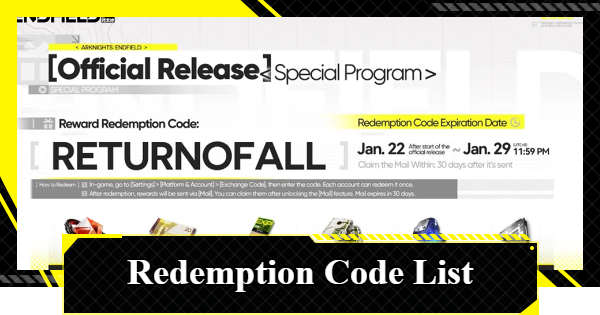 Redeem Codes List
 Best Team Comps
 Points of No Return
 Linking GRYPHLINE Account
 How to Add Friends
 Daily Tasks To Do
 Authority Level Guide
 Interactive Map