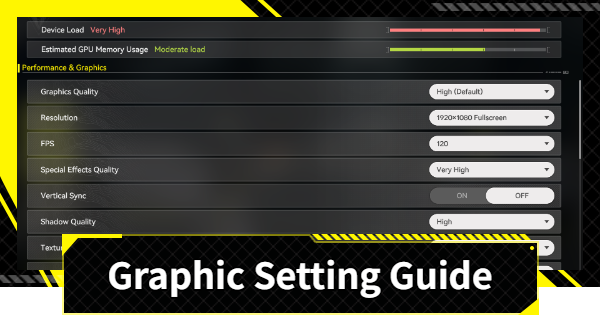
Recommended Graphic Settings for Arknights Endfield and how to change them. See the best settings and instructions on how to change them.
Table of Contents
Recommended Settings
*Only graphics settings are listed
*You can change the controls and audio to your liking
- Also see Controller Settings Guide
| Recommended Settings | |
|---|---|
| Graphic Quality | As high as possible |
| Resolution | Match your monitor |
| FPS | Match your monitor *The higher the setting, the higher the load |
| Render Scale | 100% |
| Speacial Effects Quality | As high as possible |
| Vertical Sync | ON |
| Shadow Quality | High |
| Texture Quality | High |
| Volumetric Fog | High |
| Anisotropic Sampling | ×1 *The higher you set it, the clearer the image becomes |
| Ambient Occlusion | High *A function that creates realistic depth |
| Scene Details | Highest |
| Ambient Details | High |
| Vegetation Density | High |
| Chromatic Aberration | ON |
| Screen Space Reflections | ON *Makes reflections more realistic |
| Image Enhacement | NVIDIA GeForce RTX series → DLSS Radeon series → TAUU |
| NVIDIA Reflex Low Latency | ON |
| Contact Shadows | ON |
Device Load and Memory Usage


When configuring Endfield's settings, it's important to check that the "Device Load" and "Estimated GPU Memory Usage" at the top of the graphics settings screen are not in a high-load state. If the text is red, your device may not be able to handle it, so adjust your settings until the text turns green or yellow.
Just Change the Graphic Quality
If you don't want to bother with the details when adjusting the load and estimated memory usage, it's fine to just change the main Graphic Quality at the top. After making adjustments, try playing the game, and adjust it again if it feels slow or unstable.
How to Change Settings
Top Right of Login Screen

If you want to change settings from the login screen, press the settings button in the top right.
Menu Screen During Gameplay

If you want to change settings during the game, you can do so by pausing and opening the settings from the menu.
Related Arknights: Endfield Articles
Back to Top PageTier List
 Characters Tier List
 Reroll Tier List
 Best Weapons Tier List
Gacha Information
 Which Banner Should You Pull?
 Gacha Pity System & Rates
 Gacha Currency
 Basic Headhunting Permit
Recommended Articles
 Early Game Guide
 Redeem Codes List
 How to Add Friends
 Points of No Return
 Authority Level Guide
 Daily Tasks To Do
 Starter Banner Best Weapon
 How to Farm T-Creds
 How to Get Aketine
 How to Get 2 Stock Redistributors
 Depot Nodes Location
 How to Get Origeometry
 Monthly Pass Guide
 Trust & Operator Gift Guide
Events
 Umbral Monument Event Guide Umbral Monument Event Guide |  Survive the Gas Survive the Gas |  Unorthodox Tactics Unorthodox Tactics |
 Ballista and Axe Ballista and Axe |  Bolts and Shadows Bolts and Shadows |  Rampaging Shields Rampaging Shields |
 Rock Solid Rock Solid |  Supply: Exploration Day Supply: Exploration Day |
Things to Know Before Release
 Release Date Release Date |  How to Pre-Download How to Pre-Download |  PS5 Pre-Order Bundle PS5 Pre-Order Bundle |
 How to Link Account How to Link Account |  Is Cross-Play Available? Is Cross-Play Available? |  How to Reroll How to Reroll |
 Operator Class Guide Operator Class Guide |
 Combat System Guide
 How to Win Battles
 Dodge and Perfect Dodge
 Elemental Weakness Chart
 Arts Reactions / Physical Status
 Team Composition Tips
 Best Team Comps
 Potential
 Talents and Base Skills
 How to Craft Gear
 Best Food List
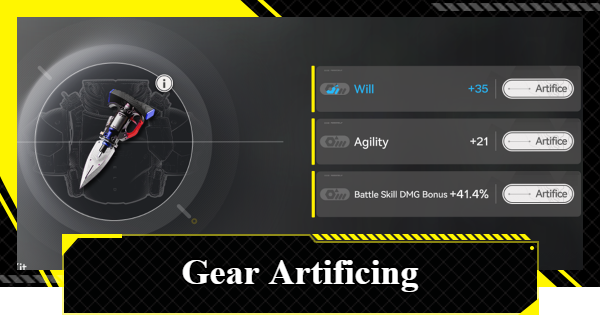 Artificing and Stats Priority
 All Fast Travel Points
 Protocol Datalogger
 Aurylene
 Interactive Map
 Ferrium Ore Map Location