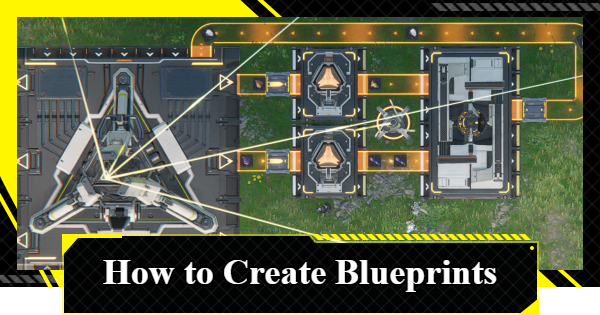
Hot to Create Blueprints in Arknights: Endfield. This includes how to unlock Blueprints, how to create, how to share, Simulation Blueprints, and more!
Table of Contents
| Blueprint Related Articles | ||
  How to Create Blueprints How to Create Blueprints | 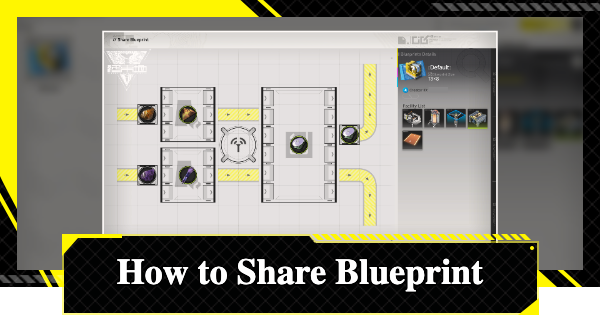 How to Share Blueprints How to Share Blueprints |  Blueprint Code List Blueprint Code List |
How to Create Blueprints
Blueprint Creation Steps
- Switch to the AIC Mode
- Create the Production Line
- Select 'Blueprints' → 'My Blueprints'
- Register from 'New Blueprint'
- Confirm All Facilities Included and Save
- Share to Initiate Review
- Select a Blueprint and Click 'Share'
You can create Blueprints in Endfield from the Automated Industry Complex (AIC) screen. To unlock Blueprint creation, you must progress the story to "Paving the Way". If you haven’t unlocked it yet, continue advancing the story.
Switch to the AIC Mode
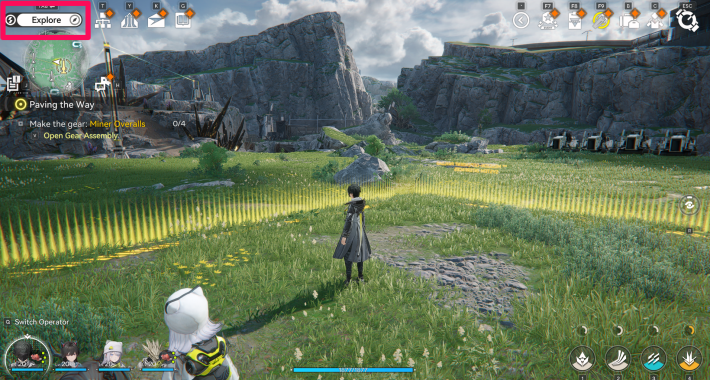
Tap the "Explore" button at the top of the screen to switch to the 'AIC Mode'. Once in the AIC screen, you can execute all AIC-related operations and workflows.
Create the Production Line
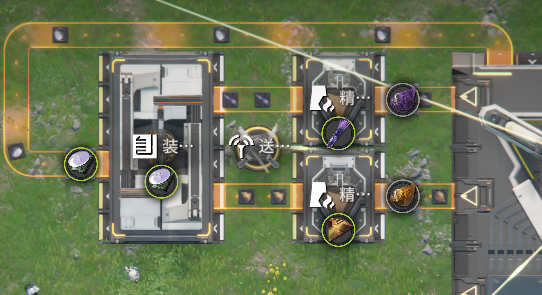
First, create the production line you want to register as a Blueprint. It will be saved as a Blueprint exactly as configured, so it’s best to organize it neatly before registration.
Select 'Blueprints' → 'My Blueprints'
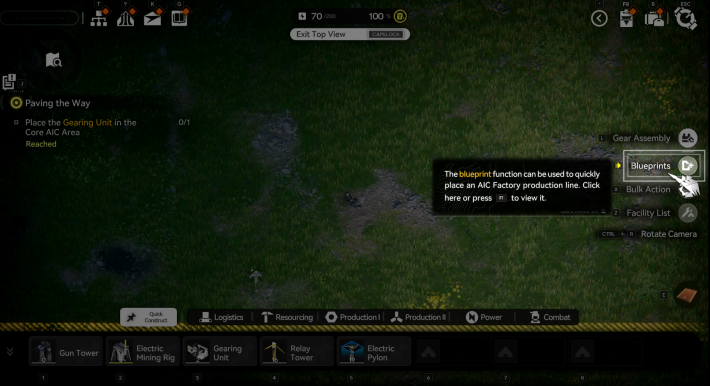
Select "Blueprints" from the right side of the screen. A tabbed interface will appear for My Blueprints, System Blueprints, and Shared Blueprints. To register a Blueprint, open the "My Blueprints" tab.
Register from "New Blueprint"
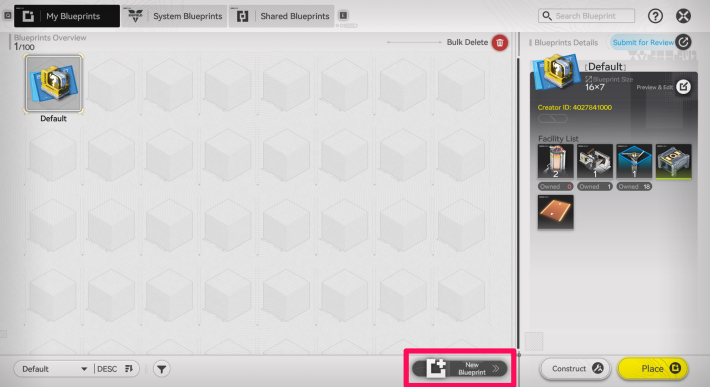
When you select "New Blueprint," a top-down view of the Automated Industry Complex (AIC) appears. Click or drag to select the area you want to register, turning it blue. Once the entire area is highlighted, select "Save Blueprint" to register it.
 Tips! Tips! | The shortcut key for "Save Blueprint" is displayed on the right side of the screen! |
|---|
Confirm All Facilities Included and Save
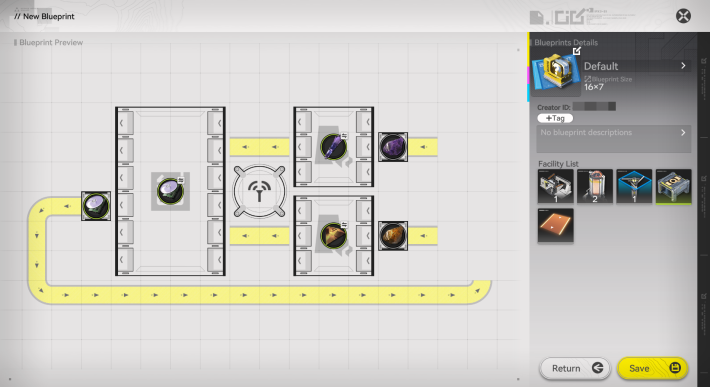
A preview image of the Blueprint will be displayed, so confirm it includes all the Facilities and Transport Belts you want to share. If everything looks correct, press 'Save' to complete the process.
Share to Initiate Review
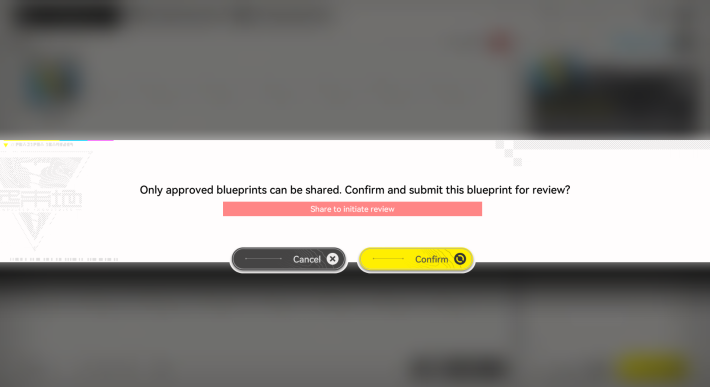
To share a Blueprint, it must pass a review. In simple terms, this checks whether the Blueprint contains offensive content.
Check the Usage Policy
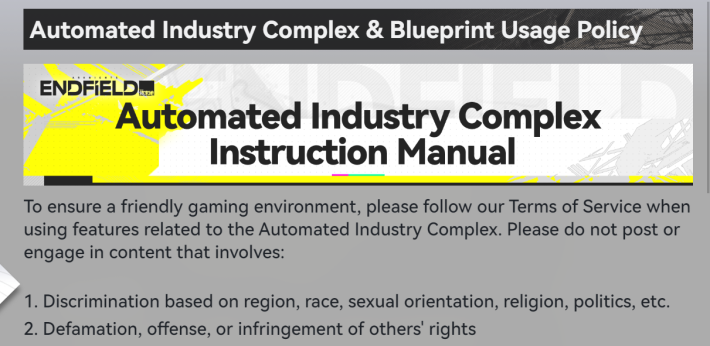
For the AIC Usage Policy, refer to the in-game announcements. You can view them upon login or by tapping the "!" icon in the menu.
Select a Blueprint and Click 'Share'
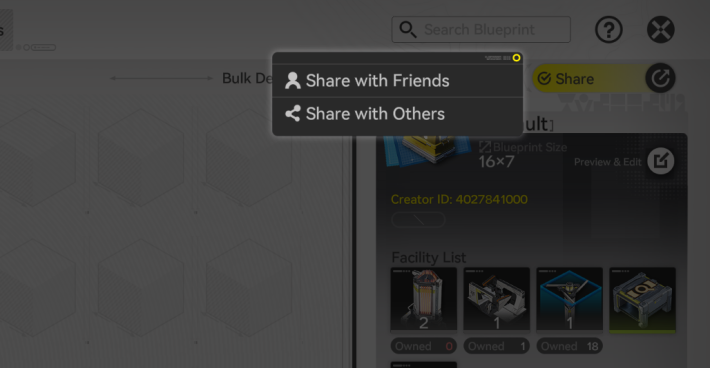
After selecting the Blueprint you want to share, a Share button will appear in the upper-right corner of the screen. Select it, then choose a sharing destination: Friends or Others.
Obtain Blueprints Through Simulations
Important to Understand the Automated Industry Complex
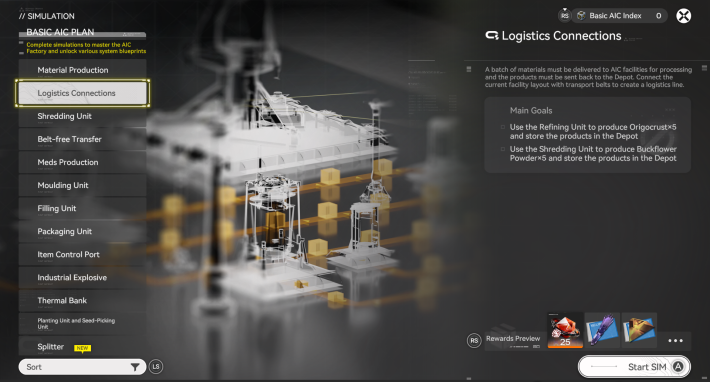
You can sometimes receive Blueprints by completing certain Simulations. By doing them, you will get a basic understanding of the Automated Industry Complex (AIC), as well as get item rewards. It's recommended to actively complete Simulations when you unlock them.
| Note! | Blueprints are also required to progress through the main story! |
|---|
How to Share Blueprints
- Create a Blueprint
- [Friends] Select the Friend You Want to Send It To
[External] Share with a Sharing Code - [External] Post to Social Media, Forums, etc.
Create a Blueprint
Create the production line you want to register as a Blueprint, then register it. Since Blueprint creation requires a review, it’s recommended to prepare it in advance if you plan to share it with a friend.
Select Share Blueprint
From the Share button in the upper-right corner of the screen, choose whether to share with a Friend or Externally.
[Friends] Select the Friend You Want to Send It To
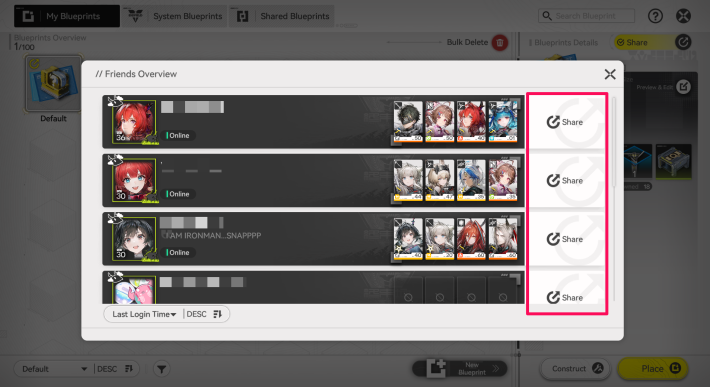
If you choose to share with a friend, your friend list will appear. Select the friend you want to share it with.
[[External] Share with a Sharing Code
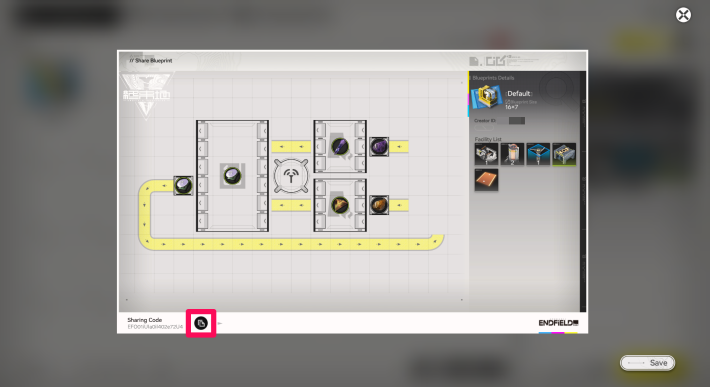
When you select "Other" as the sharing destination, a Blueprint image for social media will be displayed, so take a screenshot. Other users will also need the Sharing Code to import it, so copy the code from the bottom-left of the screen.
[External] Post to Social Media, Forums, etc.
Post the Blueprint screenshot and 'Sharing Code' wherever you plan to share it. Once another user registers it, they can use the Blueprint you created.
Blueprint Unlock Conditions
Meet the Unlock Conditions in "Paving the Way"
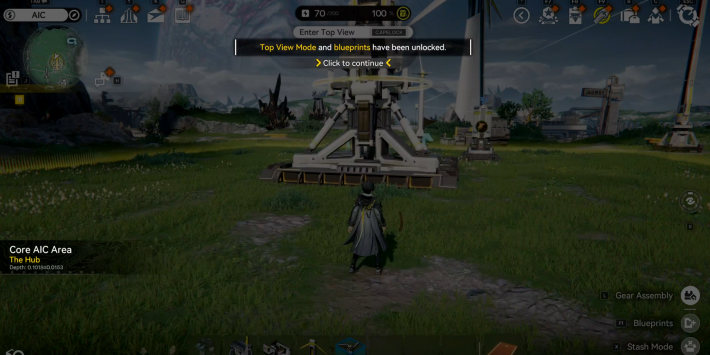
To create Blueprints in Endfield, you must progress the story to "Paving the Way". Clearing this quest unlocks the Blueprint feature, allowing you to create and share Blueprints freely. Continue advancing the story until the top-down view and Blueprint functions are unlocked in the Automated Industry Complex (AIC).

 Blueprint Code List
 How To Share Blueprints
 Basic AIC Controls
 Clogged Transport Belts
 Fixing AIC Facility Issues
 Repair Broken Facilities
 How to Craft Bombs
 Best Zipline Locations and Routes
 Sub-PAC Locations and Uses
 Best Farming Blueprints
 PAC Locations
 Wuling AIC Guide and Tips
 Reroll Tier List
 How to Reroll
 Best Characters Tier List
 Early Game Guide
 Redeem Codes List
 Best Team Comps
 Points of No Return
 Linking GRYPHLINE Account
 How to Add Friends
 Daily Tasks To Do
 Authority Level Guide
 Interactive Map