









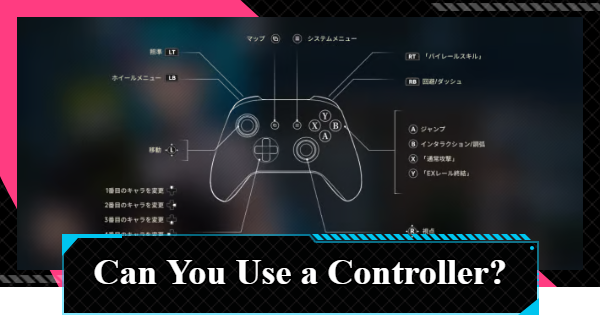
Can you play Neverness to Everness (NTE) with a controller? Check controller support for PC and mobile, the default button layout, and how to change settings.
Table of Contents
Can You Use a Controller in NTE?
Playable with a Controller


NTE can be played with a controller on both PC and mobile. Simply connect a compatible controller or gamepad to your device to start playing.
Keyboard & Mouse Also Available
The PC version also supports keyboard and mouse controls. Choose the input method that you are most comfortable with.
List of Controller Actions
Controls Overview
*The controls listed below are based on the default settings.
| Action | Controls |
| Jump | ✕ or A Button |
| Basic Attack | □ or X Button |
| Dodge/Dash | R1 or RB Button |
| Character Switch | D-Pad Up/Down/Left/Right |
| Redirect Skill | R2 or RT Button |
| Ultimate | △ or Y Button |
| Interact/Investigate | ◯ or B Button |
| Aim Attack | R2 or RT Button |
| Search/Cancel Search | Right Stick Click |
| Camera Reset | Right Stick Click |
| Confirm/Cancel | ✕/◯ or A/B |
| Wheel Menu | L1 or LB Button |
| Menu | OPTIONS or START |
| Track Quest | Left Stick Click |
| Exit | SHARE or BACK |
Change Button Layout in Settings

You can change the button layout from the "Button" screen by opening Settings (gear icon) from the Menu. Adjust the layout to match the control setup that feels most comfortable for you.
Adjust Settings in the Controls Screen

Camera sensitivity and other input settings beyond button layout can be adjusted from the "Controls" section in Settings. You can also customize screen shake, display options, camera angle, lock mode, and more to improve your gameplay experience.
NTE Related Articles
Return to HomeRecommended Articles
Recommended Guide Articles
 Early Game Guide
 Mid-Game Guide
 Daily Things to Do
 Team Building Tips
 Hunter Level
 Appraisal Level
 Anomaly Commission List
 Beyond the Rails
 Get Chiz for Free
 Get Free S-Rank Arcs
 Mall Guide
 Oracle Stone
 Interactive Map
 Best In-Game Purchases
 How to Min-Max Consoles
 Hunter Exchange
 Latest Updates
Database
  All Items List All Items List |  All Furniture List All Furniture List |  Fish List Fish List |
 Vehicles List Vehicles List |  Hidden Achievements Hidden Achievements |  Voice Actor Cast Voice Actor Cast |
 Outfits and Skins Outfits and Skins |  Arcs Weapon List Arcs Weapon List |  All Cartridges List All Cartridges List |
 Gacha Machine Locations Gacha Machine Locations | - | - |