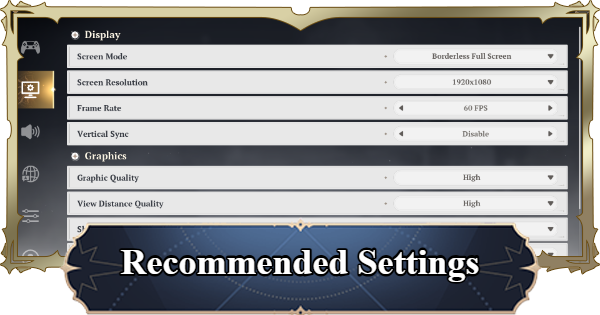
Recommended settings and how to change them in Seven Deadly Sins: Origin (7DSO). Covers recommended graphics, button layouts, and more to help you optimize your gameplay.
Table of Contents
Recommended Settings
Recommended Display Settings
| Frame Rate | 60 or Higher |
|---|---|
| Graphic Quality | High or Above |
For the best experience in 7DSO, we recommend a frame rate of 60 FPS or higher and Graphics Quality set to High or above. Feel free to adjust all other settings based on your platform and device specifications.
Recommended Specs and Required Storage
Set the Frame Rate to 60 or Higher


A higher frame rate ensures smoother gameplay, so 60 FPS or higher is recommended. That said, if your device overheats or performance drops, try lowering the frame rate to 30 FPS for better stability.
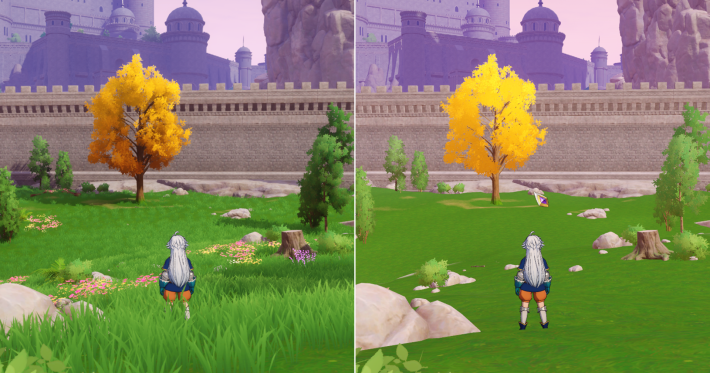
Set Graphic Quality to High or Above
Toggle Vertical Sync Based on Setup
Vertical Sync (V-Sync) helps reduce screen tearing by synchronizing your frame rate with your monitor's refresh rate, though it can cause stuttering on some devices. If you experience display issues or input lag, try toggling this setting to see which works best for your setup.
Set the "Screen Resolution" to Medium or High

The Screen Resolution setting, available under Display in the mobile version, reduces device load at the cost of overall image clarity, causing the screen to appear blurred. When set to Medium or High, readability issues such as unclear text are generally minimized. Adjust this setting based on your device's performance to balance visual quality and stability.
Recommended Controls Settings

Controllers are supported automatically once connected; no in-game setup is required. You can seamlessly switch between Keyboard & Mouse and Controller during gameplay, so use whichever input feels best for the situation. Don't forget to customize your button layout to match your preferences.
How to Set Up Controller for PC & Mobile
Recommended Volume Settings

Set the volume to your preference. We recommend starting with the default settings and adjusting them until the levels feel comfortable.
Other Recommended Settings

Settings like Chat and Target Camera can generally be left at their default values. However, if the camera controls feel awkward during combat, feel free to adjust them to better suit your playstyle.
How to Change Settings
Access Settings From the Menu

Open the Menu and tap Settings on the left side of the screen. You can also access Settings from the bottom-left corner of the Title Screen. If you're concerned about performance, try setting Graphics to 'Very Low' on the Title Screen, then increase them once the game starts.
Related Articles