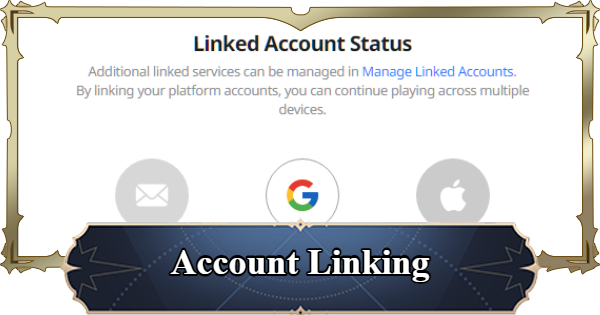
Account Linking Guide for The Seven Deadly Sins: Origin (7DSO). Learn how to link email, link social media accounts, platform sync, account restoration and account deletion.
Table of Contents
How to Link Your Account (Mobile)
- Open Settings from the left side of the title screen
- Select "Link Account"
- Select Manage Linked Accounts
- Select Your Preferred Linking Account
- Link with Google, etc., to enable linking between mobile and PC - Sign in to the Account You Want to Link
Open Settings from the Left Side of the Title Screen


Open the Settings on the left side of the title screen.
Select "Link Account"

From the Account section at the bottom left of the Settings screen, select "Link Account".
Select Manage Linked Accounts

Select "Manage Linked Accounts" to open the Netmarble account management screen.
Select Your Preferred Linking Account

Select your preferred account to link. By linking with Google, Apple, or Facebook, you can sync data between your PC and mobile device.
Sign in to the Account You Want to Link
Sign in to the account you want to link to complete the process.
How to Link Your Account (PC)
- Open Settings on the left side of the title screen
- Select Account at the bottom of the Settings screen
- Select Manage Linked Accounts
- Select your preferred account under Link Method
- Linking via Google or similar allows cross-play sync between mobile and PC - Sign in to the account you want to link
Open Settings on the left side of the title screen

Open the Settings menu located on the left side of the title screen.
Select Account at the bottom of the Settings screen
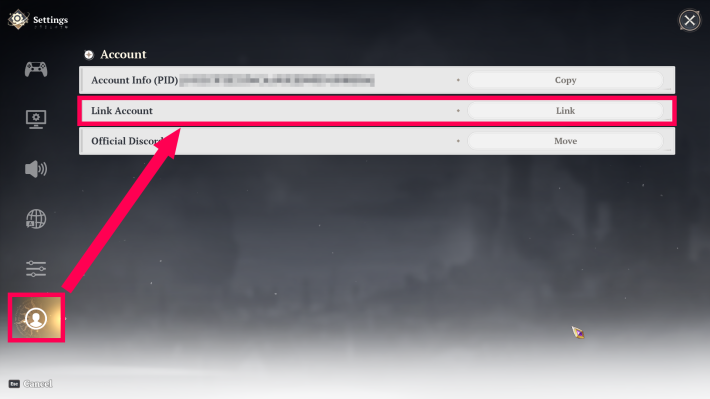
From the Account section in the bottom-left of the Settings screen, select "Link Account".
Select Manage Linked Accounts

Select "Manage Linked Accounts" to open the Netmarble account management screen.
Select your preferred account under Link Method

Select your preferred account under Link Method. Linking with Google, Apple, or Facebook will enable cross-platform sync between PC and mobile.
Sign in to the account you want to link
Sign in to the account you want to link to complete the process.
How to Remove Account Link
- Open Settings on the left side of the title screen
- Select Account at the bottom of the Settings screen
- Select Manage Linked Accounts
- Select the account you want to unlink
Open Settings on the left side of the title screen
Open the Settings menu located on the left side of the title screen.
Select Account at the bottom of the Settings screen
From the Account section in the bottom-left of the Settings screen, select "Link Account".
Select Manage Linked Accounts
Select "Manage Linked Accounts" to open the Netmarble account management screen.
Select the account you want to unlink

Select the account you want to unlink from Manage Linked Accounts. Note that at least one login method among "Email," "Google," "Apple," and "Facebook" must remain linked at all times.
Re-linking locks the account for 6 months
Be aware that if you unlink and then re-link an account, you will not be able to unlink it again for 6 months.
How to Delete Your Account
- Open Settings on the left side of the title screen
- Select Account at the bottom of the Settings screen
- Select Manage Linked Accounts
- Select Withdraw Membership from the Home menu
Open Settings on the left side of the title screen
Open the Settings menu located on the left side of the title screen.
Select Account at the bottom of the Settings screen
From the Account section in the bottom-left of the Settings screen, select "Link Account".
Select Manage Linked Accounts
Select "Manage Linked Accounts" to open the Netmarble account management screen.
Select Withdraw Membership from the Home menu at the top of the screen

Select "Home" at the top of the Netmarble page, then select Withdraw Membership. After submitting your withdrawal request, your account will be deleted after 30 days.
Guest Accounts Are Deleted Immediately Upon Logging Out

On mobile, guest accounts are instantly deleted simply by logging out. This makes guest accounts ideal for rerolling — use a guest account on mobile to quickly reset and start fresh.
How to Reroll GuideAccount Recovery
Recovery Is Possible Within 30 Days of Account Deletion
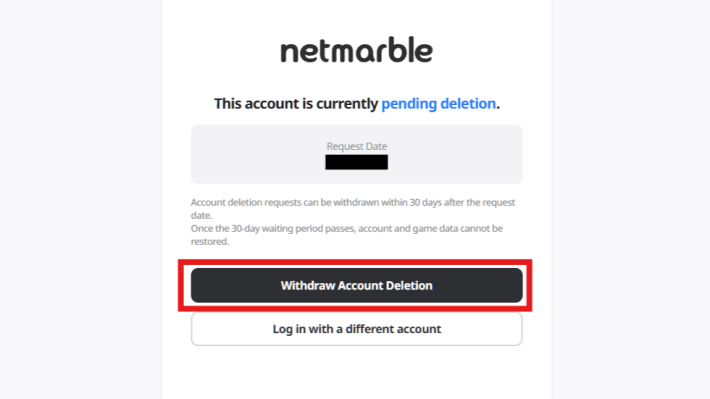
Log back in with the account that submitted the withdrawal request and select "Withdraw Account Deletion". Your account can be recovered within 30 days of initiating the deletion process.
How to Switch Accounts (Mobile Only)
- Open Settings on the left side of the title screen
- Select Account at the bottom of the Settings screen
- Log in with the account you want to switch to
Open Settings on the left side of the title screen
Open the Settings menu located on the left side of the title screen.
Select Account at the bottom of the Settings screen

From the Account section in the bottom-left of the Settings screen, select "Log Out".
Log in with the account you want to switch to

After logging out, select the account you want to switch to and log in. This lets you toggle between a linked account and a guest account, meaning you can keep your progress saved on your linked account while starting a fresh run on a guest account.
If the Switch Doesn't Take Effect, Restart the Game
If the account hasn't switched after logging into a different account, close the game completely and restart it.
Related Articles