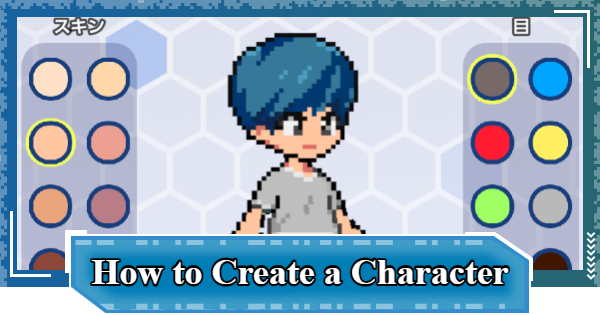
This guide explains how to create a character in Digimon UP, including customization options, creation tips, and whether you can change your appearance later.
Table of Contents
Character Creation Overview
Character Creation Cannot Be Redone
| When | When creating your character right before starting the game |
|---|---|
| Parts | - Skin Color - Eye (Color) - Face - Hair - Outfit - Shoes |
| Notes | Cannot be redone after creation |
In Digimon UP, can choose the appearance of your character like the skin tone and clothes. This can only be done when starting the game and you cannot redo this afterwards.
Customizing Gear Appearance


When you obtain Gear, Customize skins will be unlocked, and you can customize your appearance to your liking. You can also choose not to apply skins to each part in the Customize screen, allowing you to maintain the look from your initial character creation.
Equipped Gear is Shown by Default

If you haven't edited your Customize settings, the appearance of your currently equipped Gear will be applied, so your appearance will change every time you swap Gear. If you don't want your look to change frequently, you should configure your Customize settings.
How to Use Character Creator
| 1 | ▼Choose Skin and Eye Color |
|---|---|
| 2 | ▼Choose a Face Type |
| 3 | ▼Choose a Hair Type |
| 4 | ▼Choose an Outfit Type |
| 5 | ▼Choose a Shoe Type |
| 6 | ▼Confirm to Complete Creation |
Step 1: Choose Skin and Eye Color

Choose from 8 types each for skin and eye color. These are parts that may still be visible after applying an Avatar with the Customization feature.
Step 2: Choose a Face Type

Choose your preferred face from a total of 3 types. The main difference is the shape of the eyes.
Step 3: Choose a Hair Type

Choose your preferred hairstyle from a total of 3 types.
Step 4: Choose an Outfit Type

Choose your preferred outfit from a total of 3 types.
Step 5: Choose a Shoe Type

Choose your preferred shoes from a total of 3 types.
Step 6: Confirm to Complete Creation

Press the confirm button at the bottom of the screen to complete Character Creation. Be aware that the game starts once you press confirm, and you cannot return to the Character Creation screen.
Digimon UP Related Articles
Return to HomeRecommended Articles
 How to Reroll
 Early Game Guide
 Recommended Partners
 Daily Tasks Guide
 How to Choose Server
 How to Create Character
 How to Change Name
 Idle Rewards
 Unlock Condition List
 Guide Quest
 Hologram Device
 Mission Guide
 Stage Progression
 How to Add Friends
 To-Do When Stuck
 How to Speed Up Battles
 Account Linking
 Customization Guide
 Gacha List
 Event List
 Latest Updates
Training Guide
 Training Guide Training Guide |  Raising Tamer Lv. Raising Tamer Lv. |  How to Raise Rank How to Raise Rank |
 Partner Training Partner Training |  Get Best Equipment Get Best Equipment |  Skill Cards Guide Skill Cards Guide |
 Get Support Digimon Get Support Digimon |  Buddies Guide Buddies Guide |  Get SP Support Get SP Support |
 Digivice Guide Digivice Guide |  Use Tactical Memory Use Tactical Memory |
 Dungeon Guide
 PVP Guide
 Camp Guide
 Digital World Search
 Ad Skip Pass
 Battle Pass
 Digimon List
 Skill Card List
 Equipment List