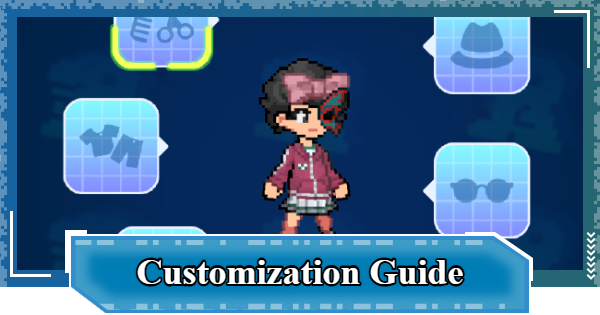
Customization Guide for Digimon UP. Learn how to customize your Tamer, edit accessories, change appearance, unlock avatars, collect cosmetic items, and personalize your character.
What is Customization?
Change Your Tamer's Appearance


Customization in Digimon UP is a feature that allows you to change your Tamer's appearance to your liking. Set unlocked skins (avatars) for each body part and try customizing your Tamer's appearance.
All Customizable Parts
| Customizable Parts List | ||
|---|---|---|
| Hair | Outfit | Shoes |
| Head Ornament | Accessory | |
Equipment Is Shown by Default

If you do not set a skin in Customize, the appearance of your currently equipped Gear will be applied. Therefore, be aware that your appearance will change every time you change your Gear.
How to Customize Tamer
| 1 | ▼Open the Tamer Menu |
|---|---|
| 2 | ▼Tap Customize |
| 3 | ▼Choose a Part to Edit |
| 4 | ▼Select a Skin Part and Apply |
1: Open the Tamer Menu

First, tap the Tamer in the bottom left of the screen.
2: Tap Customize

Next, tap Customize from the options within the Tamer menu.
3: Choose a Part to Edit

Tap the part you want to set from Hair, Outfit, Shoes, Head Ornament, or Accessory.
4: Select a Skin Part and Apply

Tap the skin you want to set, and select Apply to complete the setup.
| Note! | It's also valid to select skins for all the parts you want to change and then tap Apply. |
|---|
You Can Reset All Appearance Changes

Tapping the Button below Accessory allows you to reset all set skins at once. After resetting, the appearance of your equipped Gear will be applied, just as before setting any skins will be applied.
You Can Unapply Skins

To remove a skin, select None at the top left of the skin list. Your character will return to its original appearance set during the Character Creation.
How to Obtain Tamer Skins
| 1 | ▼Activate the Hologram Device |
|---|---|
| 2 | ▼Get in-game and campaign rewards |
| 3 | ▼Purchase from limited-time sales |
Activate the Hologram Device

The main way to obtain skins is through Gear acquired from the Hologram Device. When you acquire new Gear, the appearance is unlocked in the skin list, and you can set it freely.
Hologram Device Guide| Note! | As the Hologram Device's level increases, higher rarity items will be discharged, allowing you to obtain new skins. |
|---|
Main Sources of Hologram Tickets
| 1 | Idle Rewards |
|---|---|
| 2 | Stage Boss Defeat Rewards |
| 3 | Dungeon: Fight! DemiDevimon |
Get In-Game and Campaign Rewards

Special Gear may be distributed as rewards for out-of-game campaigns. Additionally, they may also be rewards for in-game campaigns (events), so be sure to collect them all.
Ongoing Campaign GuidePurchase from Limited-Time Sales

Skins can also be purchased from limited-time sales that appear when certain conditions are met, such as progressing through stages or consuming various tickets. The prices are often set relatively low, so consider buying if you like the appearance.
Digimon UP Related Articles
Return to HomeRecommended Articles
 How to Reroll
 Early Game Guide
 Recommended Partners
 Daily Tasks Guide
 How to Choose Server
 How to Create Character
 How to Change Name
 Idle Rewards
 Unlock Condition List
 Guide Quest
 Hologram Device
 Mission Guide
 Stage Progression
 How to Add Friends
 To-Do When Stuck
 How to Speed Up Battles
 Account Linking
 Customization Guide
 Gacha List
 Event List
 Latest Updates
Training Guide
 Training Guide Training Guide |  Raising Tamer Lv. Raising Tamer Lv. |  How to Raise Rank How to Raise Rank |
 Partner Training Partner Training |  Get Best Equipment Get Best Equipment |  Skill Cards Guide Skill Cards Guide |
 Get Support Digimon Get Support Digimon |  Buddies Guide Buddies Guide |  Get SP Support Get SP Support |
 Digivice Guide Digivice Guide |  Use Tactical Memory Use Tactical Memory |
 Dungeon Guide
 PVP Guide
 Camp Guide
 Digital World Search
 Ad Skip Pass
 Battle Pass
 Digimon List
 Skill Card List
 Equipment List